
When an individual encounters a new obstacle in his or her life, no matter the significance or severity, the odds are that said obstacle has stood in the way of challengers before. In most situations this individual is probably not the first to face this challenge. Depending on the difficulty of the challenge being faced, some challengers will succeed, while others will not--some may even find a way around it.
I experienced an obstacle that, for me, turned into a roadblock that over the past decade, I revisited several times with the same outcome until I finally asked for help. I wanted to learn how to code, but I neither knew where to start or what that path forward might look like.
I learned the basics of a couple languages by playing around with online platforms like codecademy and online koans. These tools are great for learning the basics of a language while exercising dusty, old math skills to solve simple albeit, sometimes challenging mathematical problems like those you find in Project Euler.
The problem is that all of this learning is restricted to the online platform that does all the real stuff for you. I wasn't going to be able to write my own application in an online interface. I needed to learn how to run these problems locally on my own machine, but I struggled to find references to even get set up.
Now that I’m past this roadblock that kept me stationary for so long and because I simply cannot believe that I was the first or the only one who has ever faced this roadblock, I want to share how to get your computing machine set up to do the basics locally.
The following procedure is for beginners; those who have had only a taste of learning a language, but are blocked from getting any further. It provides the steps and tools necessary to get your machine setup and running small, basic programs locally for solving problems from ProjectEuler.net as well as the ClojureKoans.
Let’s get started!
Software Descriptions
Before diving into all the downloads & installations, I felt it was important to share an overview of the software we will be installing on your machine. No need to do any downloads or installs in this first section as some of them are Operating System dependent.
Clojure
Clojure is a very powerful & efficient language. It is a functional, lisp language. I've chosen clojure for this outline for three reasons.
- It's what I know best--I’m still technically pretty new at this coding thing too..
- While the syntax is a little confusing at first, maneuvering over lists and functions to create simple algorithms is actually easier and more straightforward in Clojure than in other languages I’ve used.
- In everything that I've read, those who start with a procedural language like java or python, are often intimidated by functional languages, and I've observed that they often don't take the opportunity to learn one.
Starting with a functional language like Clojure, gets you comfortable with it from the start. There's no doubt that you will learn procedural, object-oriented languages down the line.
Java8
There are newer versions, but for now, stick with version 8 as it is the most commonly used. Because of this, using newer versions could cause you unnecessary and seemingly unsolvable problems.
Homebrew & Chocolatey
Homebrew and Chocolatey are Package Managers, which are essentially programs that do the work of downloading & installing other applications on the correct path for you. To learn more about Homebrew or Chocolatey, visit their sites Homebrew and Chocolatey. Macs will be using Homebrew; Windows will be using Chocolatey.
Leiningen
Leiningen is a tool that automates clojure and helps to manage dependencies. Trust me, you’ll want it and will come to need it, if you continue to use clojure.
.NET Framework 4.5+
This is for windows only and is a .NET Framework which is required for clojure & chocolatey to run.
Terminal & PowerShell
While this little shell may look unimpressive upon opening, it is literally the window into your computer. With the right commands, it can read files, download data, search websites, and run applications. In fact, it is the command line for your computer. Anything that you do on your computer could theoretically be commanded through this little shell window. Terminal is for Mac while PowerShell is for Windows.
Installations, Downloads, & Setup
All instructions except downloading java (and .NET for Windows), will all be performed in Terminal/PowerShell.
Mac Instructions
Java8
- Download & Install for macOSx64
Maybe Set Environment Variables
- Ensure java is installed
which java - Double check the version type
java -version
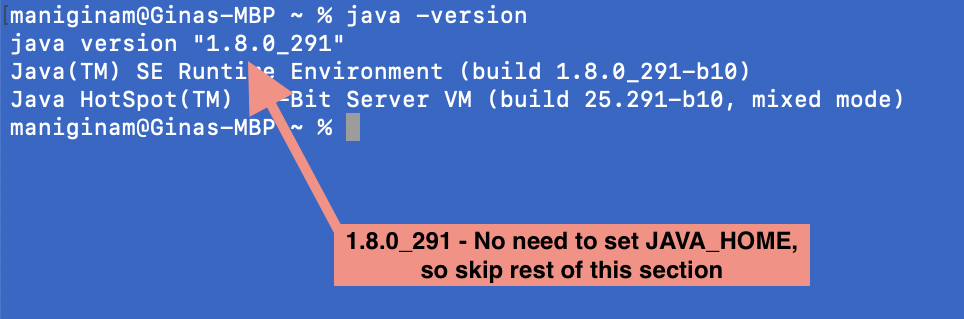
- If the return value includes Java 1.8.xx, skip the rest of the Java8 section and go to the Homebrew section below.
-
Find the shell you’re using
echo $SHELL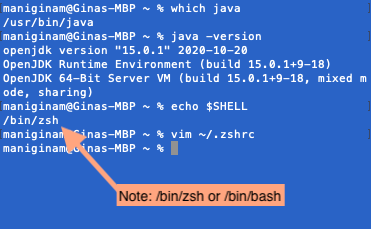
Note either /bin/bash or /bin/zsh * If /bin/bash, type:vim ~/.bashrc* If /bin/zsh, type:vim ~/.zshrc* You've now opened vim, which allows you to edit documents within the terminal * Push “i” to INSERT text * Copy/Paste:
export JAVA_HOME=/usr/libexec/java_home -v {{enter version i.e. 1.8}}
-
Push esc, then type:
:wq - Check that it’s been set:
echo $JAVA_HOME
Homebrew
- Download & install Homebrew:
/bin/bash -c "$(curl -fsSL https://raw.githubusercontent.com/Homebrew/install/HEAD/install.sh)"
Clojure
- Download & install Clojure:
brew install clojure/tools/clojure - Pay attention. Your terminal is going to ask you for your password a couple times and then prompt you to accept terms. Do these things.*
Leiningen
- Download & install Leiningen:
brew install leiningen
Windows 10 Instructions
Java8
- Download & Install for your System Type
- If you're not sure of your system type, go to your Settings and click About. System Type should be listed--mine is x64.
.NET Framework 4.5+
- Download & Install .NET Framework 4.8 Dev Pack
Open Powershell as Administrator.
First things first,
* Make sure you have at least version 5 of PowerShell:
Get-Host
* Confirm your version. Upgrade if you have an earlier version than 5:
Update-Module PowerShell
* If it asks you to update NuGet, please do so.
The rest of the instructions will be in PowerShell. If you get errors between installations, close & reopen PowerShell as Administrator.
Set Environment Variables
Note: If you are not using PowerShell, this part of the instructions may not work.
- Find the java path:
$Env:JAVA_HOME - Confirm the java version:
java -version - If it spits out jdk1.8.0_xxx, then you are good to go, and don't need to set your Environment Variables.
- Confirm path of Java8:
Get-ChildItem "C:\Program Files\Java" - If you see a folder called jdk1.8.0_xxx, then that's the one.
- If you don't then we'll need to find it:
Note: These commands will be further explained in a later section: A Path Forward - Directories, so don't sweat about not knowing what you're doing right now.
- Go to root directory:
cd / - List it's items:
ls ".\Program Files\Java" - Visually check the list. Do you see it?
- If not, then you'll need to search for it. It will likely be in Program Files and probably be in a directory that contains "Java" or "JDK".
- Go to root directory:
- Set JAVA_HOME:
$env:JAVA_HOME="C:\Program Files\Java\jdk1.8.***X_XXX***\" - Confirm it was set:
$Env:JAVA_HOME
This is what it should look like in the end:

Chocolatey
- Check your access:
Get-ExecutionPolicy - It will probably say Restricted, so
- Set your access:
Set-ExecutionPolicy Bypass -Scope Process - When it asks for permission, enter
Y - Download & install Chocolatey:
Set-ExecutionPolicy Bypass -Scope Process -Force; iwr https://community.chocolatey.org/install.ps1 -UseBasicParsing | iex
Clojure
Unfortunately chocolatey only has version 6, and we need 7, so we’ll do this manually.
* Download & install Clojure:
iwr -useb download.clojure.org/install/win-install-1.10.3.822.ps1 | iex
* It’s going to prompt you for an installation location. Per Clojure’s instructions, choose option 1.
Leiningen
- Download & install Leiningen:
choco install lein
Let's Code!
Congrats! Whether you are a Mac or a PC, you have just made your first true requests, downloads, & installations through your powerful little shell! Pretty cool!
And, I know what you’re probably thinking: coding is really just a bunch of copying & pasting, isn’t it?! Here you thought we did truly special things... I hate to break it to you that your conclusion is not entirely untrue, but I promise, it does get better. In fact, let’s have some fun!
These instructions will also be in your shell.
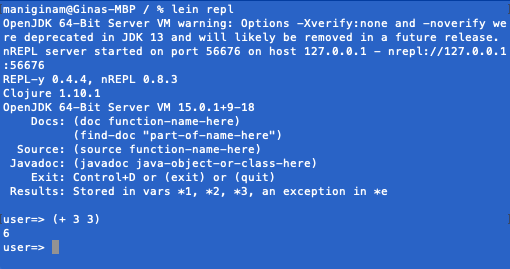
* Start the REPL: lein repl
The REPL is Clojure's free-coding arena. It stands for Read-Eval-Print-Loop. I use it frequently as my trial & error space while I’m working on projects.
* Try something like this: (+ 3 3)
-
Did it return 6?
-
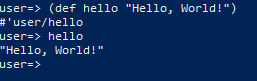
Now try this:
(def hello “Hello, World!”) -
and now:
hello
-
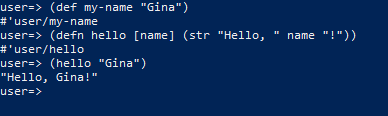
Let’s write a function:
(defn hello [name] “Hello, ” name “!”) -
Call your function:
(hello “Gina”)
-
Set your name:
(def my-name “Gina”) - Call your function again with my-name:
(hello my-name)
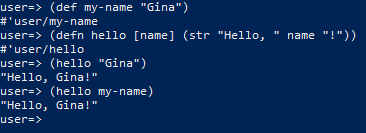
Cool!
The book Programming Clojure by Alex Miller is a part of The Pragmatic Programmer series, and is a very good resource for learning clojure.
Gitting to the Gist
This section is to get you setup and acquainted with github as well as to give you resources to learn the language basics of Clojure by way of the Clojure Koans and the practice of Test-Driven-Development (TDD) using the problems from Project Euler.
- Stop the REPL:
^d
Git
- Check for Git:
git --version - if not already installed:
- Mac:
brew install git - Windows:
choco install git
GitHub.
Go ahead and sign up for or sign in into GitHub, so we can fork some stuff!
Forking puts copies of repositories created by others under your own repository. Anything you change in your repository will not affect the master repository, so don’t worry.
At the top right of each page I'm about to direct you to, there will be a button called Fork. That's the button to push when I say "Fork It!"

- Go to the clojure koans
- Fork it!
- Go to euler specs
- Fork it!
Directories
Let’s get your projects directory set up.
In your shell, note what directory you are in. It’s probably Users/{{user name}}. This is probably a good place, but feel free to select a different location:
The following commands will get you to where you want to go:
* List all directories in the current directory: ls
* Change Directories to a lower directory
* Mac: cd /name-of-directory/
* Windows: cd .\name-of-directory\\
* Change to a higher directory: cd ..
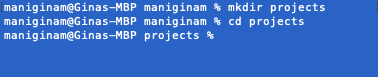
Once you’re in the directory where you want your projects folder
* Make your projects directory: mkdir projects
* Change into it: cd projects
Local Repositories
We need to make local repositories also for you to be able to do your work.
In your projects directory
* clone koans:
git clone https://github.com/functional-koans/clojure-koans.git
* clone euler:
git clone https://github.com/slagyr/euler.git
IDE
Finally, you are going to want a textEditor or IDE. I personally suggest using intelliJ by jetBrains. If you're using it for personal use only, they do offer a free community edition. One note on intelliJ, it does a lot for you! This is great, but you will come to depend on some of the tools and hints that intelliJ offers, which will impede your overall understanding of what you are doing especially while you are a novice. I started with intelliJ, so I’m not saying don’t, just be aware that it does things for you that you might need to understand as you progress in your new hobby/education/career.
There are also editors like SublimeText, TextMate, etc.
For the tasks I've supplied you with, any of those will do. Just save the files properly: .clj
Good Luck!
I’ll leave you with that.
I’d walk you through starting & running each of these tools, but my goal today was to help you get over the biggest hurdle: installation of all the pieces and then direction forward. Perhaps in a future piece, we can mock-pair together to knock-out some of these puzzles.
The truth is that learning to code involves a great deal of figuring things out on your own. That being said, it doesn’t mean that you are on your own, so if you do get stuck, remember that you are probably not the first or the only person to have ever gotten stuck at your block. If you've tried everything and still can't get there, look me up; maybe I could help.
One last hint: I highly suggest that you read the READMEs! They will tell you how to run the program and/or the specs/tests.
Sources:
- ParallelsDesktop - windows 10
- Setting JAVA_HOME on mac:
a. Jonas Rabbe; Oct 29. 2013 & Arv; Sept 27, 2018; https://stackoverflow.com/questions/14702702/how-to-set-java-home-in-mac-permanently
b. https://mkyong.com/java/how-to-set-java_home-environment-variable-on-mac-os-x/
c. (Temporary) http://www.sajeconsultants.com/how-to-set-java_home-on-mac-os-x/ - Setting JAVA_HOME on Win: https://putridparrot.com/blog/environment-variables-in-powershell/
- Homebrew: https://brew.sh
- Chocolatey: https://chocolatey.org/install
- Install Leiningen: https://community.chocolatey.org/packages/lein
- Clojure: https://clojure.org
- Install & Setup:
a. Mac: https://clojure.org/guides/getting_started
b. Windows: https://github.com/clojure/tools.deps.alpha/wiki/clj-on-Windows - Leiningen: https://leiningen.org/
- Script Mac: https://raw.githubusercontent.com/technomancy/leiningen/stable/bin/lein
- Script Window: https://raw.githubusercontent.com/technomancy/leiningen/stable/bin/lein.bat
- .NET: https://dotnet.microsoft.com/download
- Oracle; Java8: https://www.oracle.com/java/technologies/javase/javase-jdk8-downloads.html
- Git: https://git-scm.com/book/en/v2/Getting-Started-Installing-Git
- Clojure Koans: https://github.com/functional-koans/clojure-koans
- Euler: a. https://github.com/slagyr/euler b. https://projecteuler.net/
- PowerShell Commands: https://docs.microsoft.com/en-us/powershell/module/powershellget/update-module?view=powershell-7.1